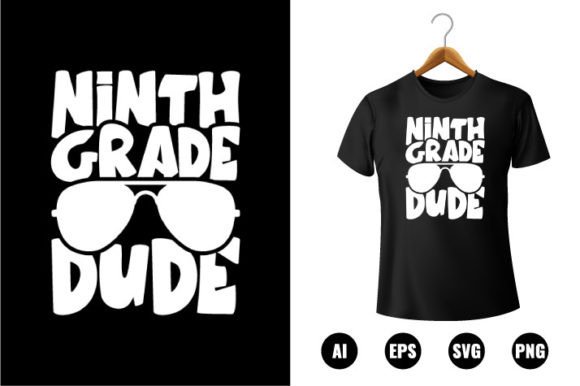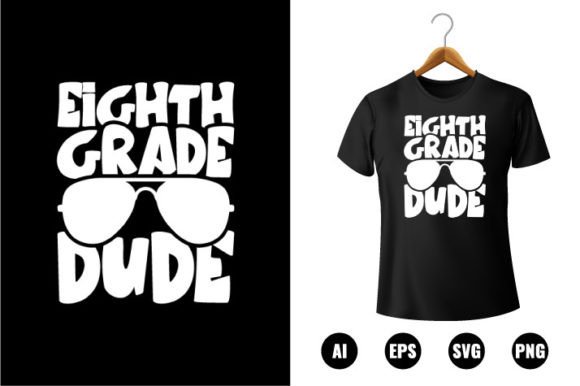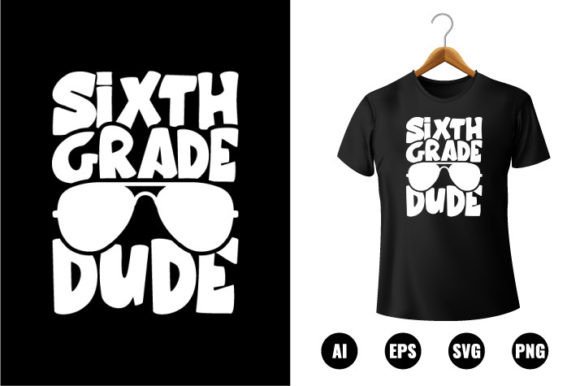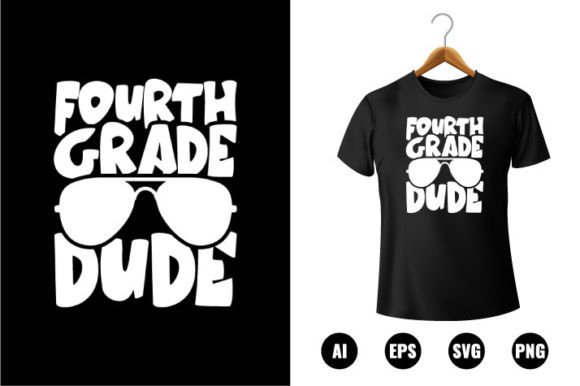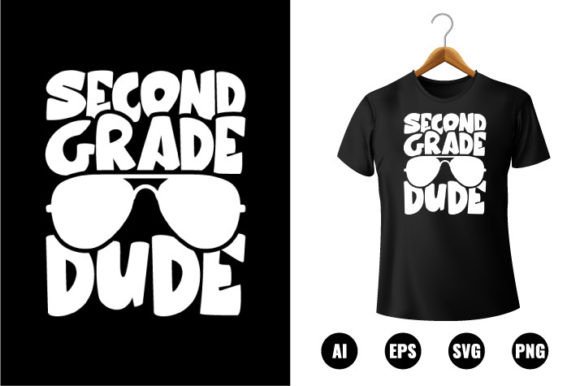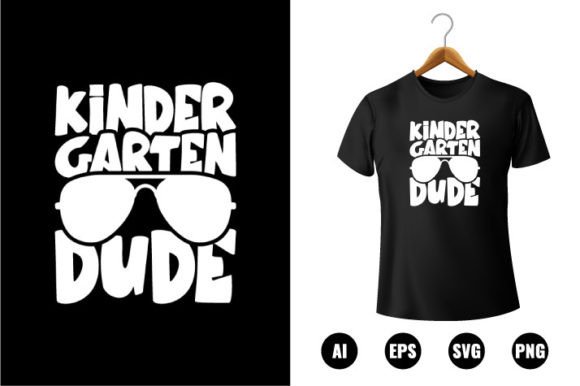
Kindergarten Dude T-shirt Design
“Kindergarten Dude” isn’t just a playful phrase—it’s a versatile, print-ready creative asset built for real-world use. This Back to School t-shirt design captures the joyful energy of early learning while offering professional-grade flexibility for creators who need reliability without compromise. Whether you're printing custom tees for a PTA fundraiser, designing classroom stickers, or building a small-batch apparel line, this digital clip art delivers precision, adaptability, and immediate usability.
What Makes This Design Stand Out
Unlike raster-based graphics that pixelate when scaled, the Kindergarten Dude t-shirt design is 100% vector—meaning every curve, outline, and shape remains razor-sharp at any size. You’ll receive AI, EPS, PNG, and SVG files, all created in Adobe Illustrator CC and optimized at 300 DPI for crisp printing on fabric, vinyl, canvas, or paper. Each element is fully layered and named, so swapping colors, adjusting spacing, or isolating parts (like the backpack or speech bubble) takes seconds—not hours.
The design is intentionally color-changeable: no locked swatches, no embedded bitmaps. You can recolor the entire composition with one click—or go granular and assign unique hues to individual shapes. That means one file serves dozens of brand palettes, seasonal themes (think pastels for spring, bold primaries for fall), or school spirit colors without needing new artwork.
Creative Applications Beyond T-Shirts
While “t-shirt design” is in the name, its utility extends far beyond apparel. Here’s how different users are applying it right now:
- Educators use the SVG version to cut vinyl decals for classroom doors, laminated name tags, or reward charts—scaling the “Dude” down to 1.5 inches or up to 24 inches with zero quality loss.
- Small business owners layer the PNG (with transparent background) over mockups for Etsy listings, Instagram carousels, or email banners—no extra masking or cleanup needed.
- Scrapbookers and crafters import the EPS into Cricut Design Space or Silhouette Studio to create custom iron-on transfers, sticker sheets, or die-cut embellishments for back-to-school planners.
- Bloggers and content creators repurpose the vector elements as illustrated headers or section dividers in printable PDFs—like “First Day Checklist” or “Kindergarten Readiness Guide.”
Because all 100 vector shapes are individually editable and resizable, you’re not stuck with one fixed composition. Flip the character horizontally for left/right balance in multi-design layouts. Extract the chalkboard-style speech bubble and pair it with your own text for bulletin board signs. Use the doodle-style backpack as a standalone icon in a “School Supply Kit” checklist.
Adapting for Different Audiences and Goals
A kindergarten teacher in rural Ohio might use the design to print matching shirts for her students’ first field trip—choosing warm yellows and sky blues to reflect her classroom’s earth-and-sky theme. A freelance designer in Portland could rework the same file into a minimalist black-and-white version for a boutique kids’ clothing line, then export clean SVGs for web use. A homeschooling parent might scale the PNG down and print it onto Avery label sheets to personalize lunchboxes and water bottles.
The key is intentionality—not just scaling or recoloring, but aligning choices with purpose. For example:
- If designing for screen use (social media, digital newsletters), export the SVG or high-res PNG—lightweight and universally supported.
- If cutting vinyl or heat transfer material, use the AI or EPS with outlined strokes and expanded paths to avoid rendering errors on cutting machines.
- If integrating into a larger layout (e.g., a welcome banner + schedule + photo frame), isolate the main character and simplify background elements to keep visual hierarchy clear.
Consistency matters most when using the design across multiple touchpoints. Pick one primary color scheme and stick with it across shirts, stickers, and digital assets—even if you vary secondary accents. That builds instant recognition, whether parents see it on a t-shirt, a classroom door, or a Facebook post.
Practical Tips for Best Results
Start simple. Open the AI file in Illustrator and spend five minutes exploring layers: toggle visibility, double-click a shape to select it, try the Eyedropper tool to sample and apply colors from your brand guide. Notice how grouped objects (like the character’s arms or shoes) stay logically organized—this saves time when editing later.
When prepping for print, always convert text to outlines—even if there’s no visible type in the base file. Some versions include editable text placeholders; others rely on graphic elements only. Either way, outlining ensures fonts render correctly on any machine.
For educators adding this to lesson plans or handouts: save a flattened PNG at 150 DPI for PDFs (smaller file size, still sharp on screen), but keep the full-resolution 300 DPI version archived for physical printing needs.
And remember—originality doesn’t require starting from scratch. The strongest creative work often comes from thoughtful adaptation. Swap the “Back to School” tagline for “My First Year,” add a tiny graduation cap for preschool graduations, or mirror the character holding a book instead of a backpack. These small, audience-specific tweaks make the design feel personal—not generic.
Why This Fits Real Creative Workflows
This isn’t clip art meant for quick drag-and-drop decoration. It’s built for iteration, integration, and scalability—qualities that matter when you’re juggling tight deadlines, limited tools, or diverse output requirements. Freelancers appreciate the clean vector structure because it integrates smoothly into client brand kits. Small business owners value the print-ready files because they reduce vendor back-and-forth. Educators trust the clarity and legibility because young eyes notice details—and fuzzy edges distract from the message.
Most importantly, it respects your time. No hunting for missing fonts. No wrestling with low-res JPEGs. No rebuilding outlines from scratch. Just open, adjust, export—and move forward with confidence.